Accessing Administrative Application Via the [System Administration] Window
The Administrative Application of each component can be accessed via the [System Administration] window. However, the logged-in user is required to have the administrator permissions to the component to access the administrative application.
Descriptions of the [System Administration] window
The [System Administration] window allows you to confirm the status of each component used by ArcSuite system, and to access the administrative applications of each component.
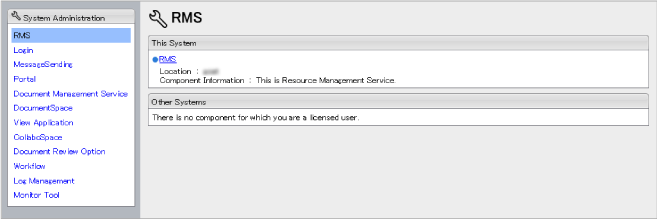
Fig.: [System Administration] window
The following items are displayed in the [System Administration] window.
| Item |
Description |
| Component List |
Displays the list of components. Clicking the link in the list displays the component information in the [This System] area or the [Other Systems] area. |
| [This System] area |
The following information is displayed if the clicked component exists in this system.
- Component name
- Component location
- Component information for the administrator
- Link to the administrative application
|
| [Other Systems] area |
The following information is displayed if the clicked component exists in any system other than this system.
- Component name
- Component location
- Component information for the administrator
- Link to the administrative application
|
Accessing the administrative application
Operation
- In the list on the left of the [System Administration] window, click the component name of the administrative application which you wish to start.
The information of the clicked component is displayed in the right of the window.
- Click the link of displayed component name.
The [Administrative Login] window to the administrative application is displayed in a new window.
- Enter [User ID] and [Password] of the user who has the administrative permissions to the administrative application.
- Click the [Login] button.
If the login is successful, the top window of the administrative application is displayed.