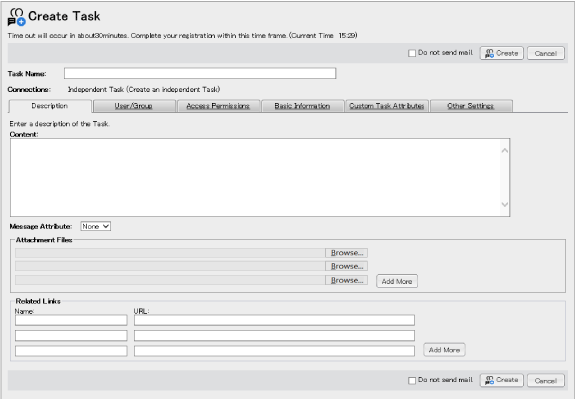
The [Create Task] window allows you to create a new Task.
Fig.: [Create Task] window
The following explains the items in the [Create Task].
| Item | Description |
|---|---|
| [Task Name] | Enter the name of the Task to be created.
|
| [Connections] | When the window is opened from Task Place, select from the candidates when creating the independent, parent, child, or parallel tasks. When the window is opened from the task list, the tasks become independent and connections cannot be selected. |
| [Description] tab | Displays the [Description] tab page. |
| [User/Group] tab | Displays the [User/Group] tab page. |
| [Access Permissions] tab | Displays the [Access Permissions] tab page. |
| [Basic Information] tab | Displays the [Basic Information] tab page. |
| [Custom Task Attributes] tab | Shown only when the custom attribute is set in the CollaboSpace administrative application. Displays the [Custom Task Attributes] tab page. |
| [Other Settings] tab | Displays the [Other Settings] tab page. |
| [Do not send mail] checkbox | When not sending any mail notifying of a Task creation regardless of the server settings, mark this checkbox. |
| [Create] button | Clicking creates a Task based on your specifications. A mail notifying that a Task has been created is sent. The recipients of this mail are the participants defined in the [Mail Notification Settings] page of the [CollaboSpace Administration] window. When you have failed in creating a Task and you have returned to the [Create Task] window using the [Back] button, you may find the entries cleared.
|
| [Cancel] button | Clicking displays a dialog confirming the settings. Clicking the [Yes] button closes the [Create Task] window. |
The following explains items of every tab page.
| Item | Description |
|---|---|
| [Contents] | Enter the description regarding the Task to be created. The first message will be created based on the entries and the Task information. |
| [Message Attribute] drop-down list | Select the attributes for the description. The default is [None]. The message attribute can be defined in the administrator's [Set Message Attributes] page. |
| [Attachment Files] | Specify the file to be attached to the first message. Specify the file in the dialog box displayed by clicking the [Browse] button. Or, the file name (including path) can be entered directly. You can also specify the attachment files by dragging the target files into [Attachment Files] via Windows Explorer, etc. When directly entering the file name, note the following points.
|
| [Related Links] | Specify the link related to the Task contents. Enter any name in [Name], and the link URL in [URL].
|
| Item | Description |
|---|---|
| [Participant] | From among the users registered in CollaboSpace, select the Task participants of the Task to be created for each of the roles below. [Member] Users who actually perform the Task activities and report the status to the leader. [Leader] Users who assign activities to members and wait for reports. [Observer] Users who should be informed of the existence or progress of the Task. [Task Administrator] Users authorized to perform system administrations of the Task. The following buttons are used. [Address Book] button Clicking the button displays the [Address Book] window. The user, group, and role specified in the [Address Book] window can be specified as Task Member, Leader, Observer, Task Administrator, or Non-participant (Privileged). Users who are restricted from using Address Book by Resource Management Application cannot use Address Book.
|
| [Non-participant] | From among the users registered in CollaboSpace, select the users who share the information of the Task to be created for each of the roles below. [Non-participants (Privileged)] Use in a case, for instance, to set the user or group among non-participants, with whom the information needs to be shared. The buttons to be used are same as those for [Participants]. |
Define permissions to the following Task operations for [Member], [Observer], [Non-participant], and [Other Users] respectively.
A checkbox is provided for each permission. All checkboxes are marked by default. When this tab is called with a task specified, the access permission settings follow those in the original task. The permissions of non-participants must be equal to or lower than those of the members and observers. The checkbox state is automatically modified in line with this rule.
For details of the relationship between access permissions and Task roles ➯ "About Access Permissions"
| Item | Description | ||||||||
|---|---|---|---|---|---|---|---|---|---|
| [Planned Start Date], [Planned Close Date] | Specify the planned start date and planned close date of the Task to be created by minutes. By default, [Planned Start Date] is filled in with the date when the [Create Task] window was displayed. The default for [Planned Close Date] is filled in with the date one week after [Planned Start Date]. Date and time can be specified also in the dialog box that is displayed by clicking Easy date input icon or Easy time input icon.
|
||||||||
| [Status] drop-down list | Select the Task status. The default is [Initiated]. |
||||||||
| [Progress] | Select the [Auto-calculation] or [Manual Settings] radio button. When the [Manual Settings] radio button is selected, select the percentage of completion from the drop-down list. |
||||||||
| [Task Language] drop-down list | Select the Task language. If the [Create Task] window has been called after specifying a Task, the Task language is that of the original Task. If not, the Task language is that of the logged-in user. |
||||||||
| [Task Color] | Specify the color that appears before the [Task Place] page task name.
|
| Item | Description |
|---|---|
| [Mail Notification] | Make the notification setting of the default mail by the participant types. Shown below is the default mail notification settings that can be selected.
|
| [Settings used when the Group (or Role) is changed] | [Do you wish to create a message when the specified Task Group (or Role) is changed?]: Select one of [Create a message] or [Do not create a message]. The default is [Create a message]. [When the participants are deleted due to the change in Group (or Role) to which they belong, do you wish to let them stay in the Task for a while?]: Select one of [Yes, let them stay] or [No, delete them]. The default is [No, delete them]. |