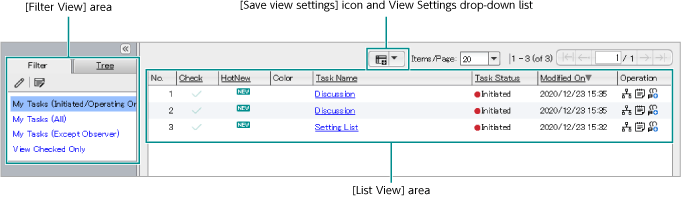
The [Task List] page allows you to view a list of Tasks in which the user is participating.
Fig.: [Task List] Page (Filter View)
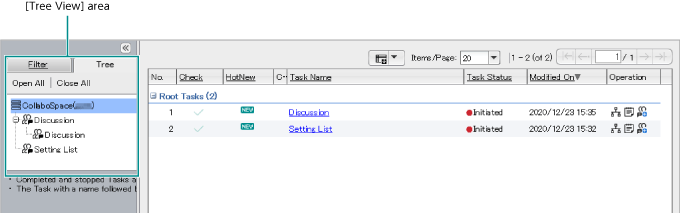
Fig.: [Task List] Page (Tree View)
The following explains each item in the [Task List] page.
The [Filter View] area appears on the left of the window in the filter view mode, showing the list of filters for narrowing down the range of tasks.
This function allows you to narrow down the Tasks to be displayed in the [Task List] page. This function is available in the "filter view" mode only.
The width of the [Filter View] area can be adjusted by dragging the border line between the [Filter View] area and the [List View] area.
The following explains each item in the [Filter View] area.
| Item | Description |
|---|---|
| [Edit Filter] button | Clicking this button displays the [Edit Filter] page where you can create, edit, or delete custom filters. |
| [Filter View Settings] button | Clicking this button displays the [Filter View Settings] page where you can select the filter to be displayed in the [Filter View] area. |
| Filter List | Lists the filters for narrowing the range of tasks. Click a filter name to display the tasks narrowed down by the filter in the [List View] area. The selected filter is highlighted with darker background color. |
This is the page for editing the settings of the filter created.
Described below is each item in the [Edit Filter] page.
| Item | Description |
|---|---|
| [Create New Filter] | Clicking displays the [Create New Filter] window. |
| Filter List | [No.] Displays a serial number in the list. [Filter Name] Displays the filter name. [View] [ON] is displayed for the items to be displayed in the [Filter List] page. [Operation] The following icons appear. Click one of the following. ([Edit] icon) ([Edit] icon)Clicking displays the page for editing the filtering conditions. The displayed items are the same as those of the [Create New Filter] page. Change the filtering conditions and click the [Edit Filter] button.  ([Delete] icon) ([Delete] icon)Clicking displays a message confirming deletion. Click the [Yes] button. The filter is deleted. |
This is the page for creating user-defined filters.
Described below is each item in the [Create New Filter] page.
| Item | Description |
|---|---|
| [Filter Name] | Enter the name of the filter to be created. |
| Filtering conditions | [Task Name] Enter the Task name when narrowing down the Tasks by Task name. You can specify [AND] or [OR] for specifying multiple task names. [Task Status] Mark the checkboxes when narrowing down the Tasks by Task status. [Participant Type] Mark the checkboxes when narrowing down the Tasks by the participant type. [Member Status] Checkboxes will be enabled only when "Member" is checked under [Participant Type]. Mark the checkboxes when narrowing down the Tasks by the member status. [Select specific Tasks] Mark this checkbox when directly selecting specific Tasks. Click the [Select Tasks] button. Then, specify the Task in the [Select Tasks] window displayed. For details of the [Select Tasks] window ➯ "Descriptions of the [Select Tasks] Window" [Create New Filter] button Clicking creates the filter based on the specified conditions. [Cancel] button Click to discard the condition you have set and return to the [Edit Filter] page. |
This is the page for selecting the filters to be displayed in the [Filter View] area of the [Task List] page as options.
Described below is each item in the [View Settings] page.
| Item | Description |
|---|---|
| [Not To Be Displayed] | Lists the filters that are not to be displayed in the [Filter View] area. |
| [To Be Displayed] | Lists the filters that are to be displayed in the [Filter View] area. |
| [Add] button | Clicking the [Add] button after selecting filters in the [Not To Be Displayed] list moves the corresponding filters to the [To Be Displayed] list on the right. |
| [Delete] button | Clicking the [Delete] button after selecting filters in the [To be Displayed] list moves the corresponding filters to the [Not To Be Displayed] list on the left. |
    buttons buttons |
Changes the display order in the list. After selecting a list item, click to move it up or to move it down. After selecting a list item, click to move it to the top of the list, or to move it to the bottom of the list. |
| [Apply] button | Clicking displays in the [Filter View] area the filters that are listed in the [To Be Displayed] list. |
| [Cancel] button | Click to discard the content you have set and return to the [Task List] page. |
The [Tree View] area appears on the left of the window in the tree view mode. This page shows the connections of the Tasks that the user is participating in.
The following explains each item in the [Tree View] area.
| Item | Description |
|---|---|
| [Open All] button | Clicking the button displays all related Tasks unfolded. |
| [Close All] button | Clicking the button folds the unfolded display. |
| Tree view of Tasks | Tasks having other Tasks under them have a "+" sign attached. When the "+" sign is clicked, all the Tasks below that Task are unfolded and the "+" sign changes to "-". When the "-" sign is clicked, all the unfolded Tasks are folded. When the CollaboSpace server's host name or task name is selected, the CollaboSpace server's route task list or the selected task together with its child task list is displayed in the [List View] area. The selected filter is highlighted with darker background color. |
The [List View] area appears on the right of the window in the filter view mode or the tree view mode, showing the list of tasks.
The following explains each item in the [List View] area.
Clicking the title of the column described below displays the Tasks sorted. With each click on the title of the column, the sort order changes between ascending and descending.
| Item | Description |
|---|---|
| [No.] | Displays a serial number in the list. |
| [Check] | Displays whether or not an item has been selected. If the checkbox is marked, that item has been selected. If the checkbox is not marked, that item is not selected. The task with its checkbox marked is shown when the [View Checked Only] filter is enabled. |
| [HotNew] | The following icons appear.
|
| [Color] | Displays the Task color. The Task color is set in the [Create Task] window. The task color is not shown when it is not changed from the default. For details of the [Create Task] window ➯ "Descriptions of the [Create Task] Window" |
| [Color Code] | The color code of the task color is displayed. |
| [Task Name] | Displays the name of each Task. When clicked, the selected Task is displayed in the [Task Place] page. |
| [Number of Participants] | Displays the number of persons participating in the Task. |
| Participant Type | Displays the role of the user in each Task. |
| Custom Task Attribute | Displays the Task attributes defined by the user. |
| [Leader] | Displays the name of a leader. Only one name is displayed. When there are two names, then the name is displayed as "XXXX and one more person". |
| [Task status] | The Task status is displayed. |
| [Member Status] | When participating in a Task as a member, the activity status of the user him or herself is also displayed by an icon. |
| [Modified On] | Displays the date/time when the Task was last modified. |
| [Unaccessed] | Displays the number of messages not yet opened. |
| [Planned Start Date] | Displays the date and time each Task is planned to start. |
| [Planned Close Date] | The planned close date for each Task is displayed. When the current date exceeds the planned close date, the background color of the planned close date field is displayed in red. |
| [Key Person] | Displays the name of the key person. Key person is a user who has often viewed the files registered by a user and is ranked high with respect to a certain Task. Up to three users can be rated as key person for each Task. Only one best scoring user is shown in the Task list. The key person listing is not updated in real time, but only reflects the data last update. Not until the key person bulk update service or Task information change is performed, the key person data will not be updated. Therefore, the listing may be one day old at the maximum. The key person bulk update service is executed once a day at the specified time. The execution time can be specified via the server settings of CollaboSpace Administrative Application. In order for key persons to be listed, there must be at least one Task in which files are registered and accessed (read or downloaded) via Task Place. Therefore, no key person exists in a Task that contains no file or contains a file no one has ever accessed. |
| [Operation] | The following three icons appear.
|
 ([Save View Settings] icon): Click to save the current view settings.
 ([Hot] icon)
 ([New] icon)
 ([HotNew] icon)
 ([Task Structure] icon)
 ([Task Report] icon)
 ([Create Task] icon)